
Quiz
Questions are shown on the big screen, and students answer with a phone, a tablet, or a manikin. When you reveal the answer, the number of people who selected each option is shown, so you can go over anything many students got wrong on the spot.
Requirements
Section titled “Requirements”
Participation modes
Section titled “Participation modes”| Instructor-led | Mobile join | Manikin join | |
|---|---|---|---|
| How students answer | None (watch the screen together and answer out loud) | Select an option on a phone or tablet | Number of presses on the manikin chest |
| Time limit per question | None (you move on) | 10, 15, 20, or 30 seconds, or First correct only | None (you move on) |
| Changing an answer | — | Only when Allow answer edits is on | Always (until the answer is revealed) |
| Scores · ranks | None | Yes | Yes |
| Sets used | Same sets as Mobile join | Mobile sets | Manikin sets only |
How to use
Section titled “How to use”- Mode selection
- Set selection
- Participant join
- Questions
- Answer reveal
- Final results
Participation mode selection
Section titled “Participation mode selection”Select Quiz on Home to show this screen. Selecting a card takes you to the next screen.
- 1Instructor-led: Shows only the questions on the big screen.
- 2Mobile join: Students join with a QR code and answer on their own devices.
- 3Manikin join: Students answer by pressing connected manikins.
- 4Number of connected manikins: If none are connected, No manikin connected is shown. To use Manikin join, connect the manikins first (see Manikin connection).
Quiz set selection
Section titled “Quiz set selection”The quiz settings are on the left, and the set list is on the right. The settings are shown only in Mobile join.
- 1Time limit per question: Select 10, 15, 20, or 30 seconds, or First correct only (the question ends as soon as the first person gets it right). The default is 15 seconds.
- 2Allow answer edits: When checked, students can change their answer until the correct answer is revealed. When it is off, the first answer they select is final. It is off by default and is locked when you select First correct only.
- 3Set list: Select the set to use. The number at the top right is the number of questions.
- 4Next: Enabled once you select a set. Select it to go to the join screen.
- 5Choose mode again: Returns to the participation mode screen.
Student join — Mobile join
Section titled “Student join — Mobile join”Have students scan the two QR codes in order on their devices.
- 1Network connection: Connects the student device to the same Wi-Fi as the PC. Shown only when the PC knows the Wi-Fi name.
- 2Session access: Opens the app on the student device. Students select Student, enter a name (2–10 characters), and select Join.
- 3Enlarge: Shows the QR code in a large size.
- 4Participant list: Shown in the order the names were entered. The two lines at the top are the number of devices connected and the number of people who entered a name.
- 5Start: Shows the first question.
Manikin participation setup — Manikin join
Section titled “Manikin participation setup — Manikin join”Switch the manikins that will answer to Joined. Only joined manikins can answer.
- 1How to answer: How to answer with a manikin (see “Manikin answers” below).
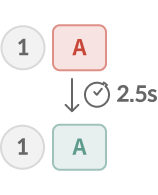
- 2Manikin rows: Press the manikin chest once and let go to switch between Joined and Not joined. To switch again, wait about 2.5 seconds before pressing. The number in the circle is the manikin ID.
- 3Join all: Makes all manikins join. When all have joined, it changes to Leave all.
- 4Manage connections: Goes to the manikin search screen (Manikin connection).
- 5Start: Shows the first question.
Question progress
Section titled “Question progress”Student devices show the same question and the time remaining.
- 1Question and options (1–4): True/false questions are shown as two boxes, ○ / ✕.
- 2Time remaining: The time left. With First correct only, End condition and First correct only are shown here.
- 3Response status: The number of people who have answered. It turns green when everyone has answered.
- 4Reveal answer: Reveals the answer.
| Mode | When the answer is revealed |
|---|---|
| 10, 15, 20, or 30 seconds | Automatically when time runs out. You can also select Reveal answer before that. |
| First correct only | Automatically the moment someone first gets it right. If no one gets it right, select it yourself. |
| Instructor-led · Manikin join | There is no time limit. The answer is revealed only when you select Reveal answer. |
Answer reveal
Section titled “Answer reveal”- 1Explanation: If the set has an explanation, it is shown with the answer.
- 2Correct option: Shown in green.
- 3Response distribution: The number of people who selected each option. A, B, C, and D are options 1, 2, 3, and 4.
- 4Buttons: Checkpoint shows the ranks so far (step 6), Next question goes to the next question, and End ends the quiz. On the last question, only End is shown.
Checkpoint ranks
Section titled “Checkpoint ranks”Shown when you select Checkpoint on the answer reveal screen. Student devices show the same Live standings screen.
- 1Buttons: Continue with Next question or end the quiz with End.
- 2Session summary: The current leader and their score, the average number of correct answers, and the average response time.
- 3Top performers: The number of correct answers for up to the top 5. One block of a bar is one correct answer. The thin blue bar next to it is the average response time; the fuller it is, the slower the answers were.
- 4Overall ranking: The overall ranking. The small bars show each question as right (green), wrong (pink), or not shown yet (gray). A green check mark means the participant got the most recent question right.
Final results
Section titled “Final results”- 1Podium: First, second, and third place. In Manikin join, manikin IDs are shown.
- 2Session summary: The winner, the average number of correct answers, and the average response time. Scroll down to see a score graph for up to the top 5.
- 3Overall ranking: The overall ranking, with each question shown as right (green) or wrong (pink), plus the number correct, the average response time, and the score. A green check mark means the participant got the last question right.
- 4Restart: Returns to the set screen to start a new quiz.
Manikin answers
Section titled “Manikin answers”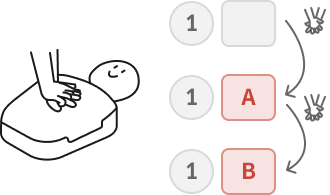
The Manikin responses panel on the right of the question screen shows the answer status of each manikin.
Scoring and ranking rules
Section titled “Scoring and ranking rules”Student screens
Section titled “Student screens”In Mobile join, when you select a button, the student screens move on automatically.
| Instructor (PC · big screen) | Student (phone · tablet) |
|---|---|
| ① Mode · set selection → Next | Students who joined early wait on the Waiting for the quiz to start screen. |
| ② Join screen (QR codes · participant list) | Scan the QR code → Student → Join the quiz: enter a name and select Join → You're in |
| ③ Start → question · time remaining · response status | The same question and time remaining are shown. Students select an option to answer. |
| ④ Reveal answer (or time runs out) → explanation · response distribution | Correct!, Wrong!, or Time's up (in first-come mode, First answer taken) |
| ⑤ Checkpoint → Live standings | Live standings (the student’s own row is highlighted) |
| ⑥ End → final results | My score: Accuracy · Final rank · Longest streak + overall ranking |
Tablets and license tiers
Section titled “Tablets and license tiers”Frequently asked questions
Section titled “Frequently asked questions”It says “No quiz sets available”
No quiz sets have been downloaded yet. Sets cannot be created in the app. The default sets are downloaded from the internet when you start the app, so check your internet connection and restart the app. Sets made by your administrator are downloaded only after you link the app to the CPR cloud (Cloud Integration).
I selected Manikin join, and there are no sets
“There are no manikin sets. Add a set or choose another mode.” — Manikin join shows only manikin sets. Select another mode with Choose mode again, or ask your administrator to add manikin sets in the CPR cloud.
Next is grayed out
No set has been selected yet. Select the set to use in the list on the right.
The join QR code doesn’t appear
“Not on a network — can't create a join QR.” — Check that the PC is connected to Wi-Fi or a network. On an instructor tablet, “Loading the instructor's desktop network info…” may be shown for a moment.
Only one QR code appears
When the PC does not know the Wi-Fi name, only the Session access QR code is shown. First connect the student devices directly to the same Wi-Fi as the PC, then have students scan that QR code.
Students scanned the QR code, but the student screen doesn’t open
The student devices must be on the same Wi-Fi as the PC. Have students scan QR code 1 (Network connection) first and 2 (Session access) next. If it still does not work, the PC firewall may be blocking the student devices from connecting. Allow this app’s connections in the firewall, or, if it is your organization’s PC, please ask your IT staff to “allow port 5050” (Tablet use).
A student who came late can’t join
“A quiz is in progress” — After the first question is shown, no one new can join. Have the student join the next quiz.
The manikins don’t show up on the question screen
“No manikin has joined yet” — The manikins were not switched to Joined on the step 3 “Manikin participation setup” screen. “No manikin connected” — The manikins are disconnected. Connect them again (Manikin connection).
I can’t see the time limit or answer edit settings
These settings are only in Mobile join. Instructor-led and Manikin join have no time limit; you move on with a button. If you select First correct only, answer edits are turned off with this message: “Not available in first-correct mode.”
I want to end the quiz in the middle of a question
The question screen has no End button. First select Reveal answer, then select End.